
AI Album Cover Generator: Free Options, Prompts & Cover Sizes

By Nathan Cole
MyClaw Editorial
Free Album Cover Generator
Create an AI Album Cover
Generate square album artwork from genre, mood, and a visual idea—online and free to try.
Generate an Album CoverAI Takeaway
- Which AI album cover generator should I try? Consider MyClaw for genre-based cover templates, Adobe Firefly for visual refinements, Neural Frames for a quick trial without signup, or RaoMusic for a concept based on your song.
- Can I start for free? Yes, through guest access, daily allowances, or signup credits. Check both the generation limit and what you can download.
- What belongs in the prompt? Genre, mood, one focal subject, palette, texture, square composition, and space for titles.
- Is 3000 × 3000 always required? No. DistroKid recommends that size but accepts a lower minimum; Spotify has its own range. Follow your distributor’s artwork requirements.
Choose an AI Album Cover Generator for Your Release
An AI album cover generator turns a description into artwork for your music. Your starting material determines which features matter most.
For an imagined scene, start with a prompt or an image-generation template. For an artist portrait, look for reference-image support. A song-based tool can help when you have audio but no visual brief. If the artwork only needs a title, use a layout editor for precise spelling and placement.
For a single, EP, album, or mixtape, prioritize a square composition and useful revision controls. Decide early whether to include lettering: reserve a clear area for a title, or let the image fill the frame if the cover will have no text.
4 AI Album Cover Generators to Try
When choosing a free AI album cover generator, compare what you can create, how you can revise it, and what the free allowance covers. Here is how four options differ, based on their published features and terms.
MyClaw Album Cover Generator
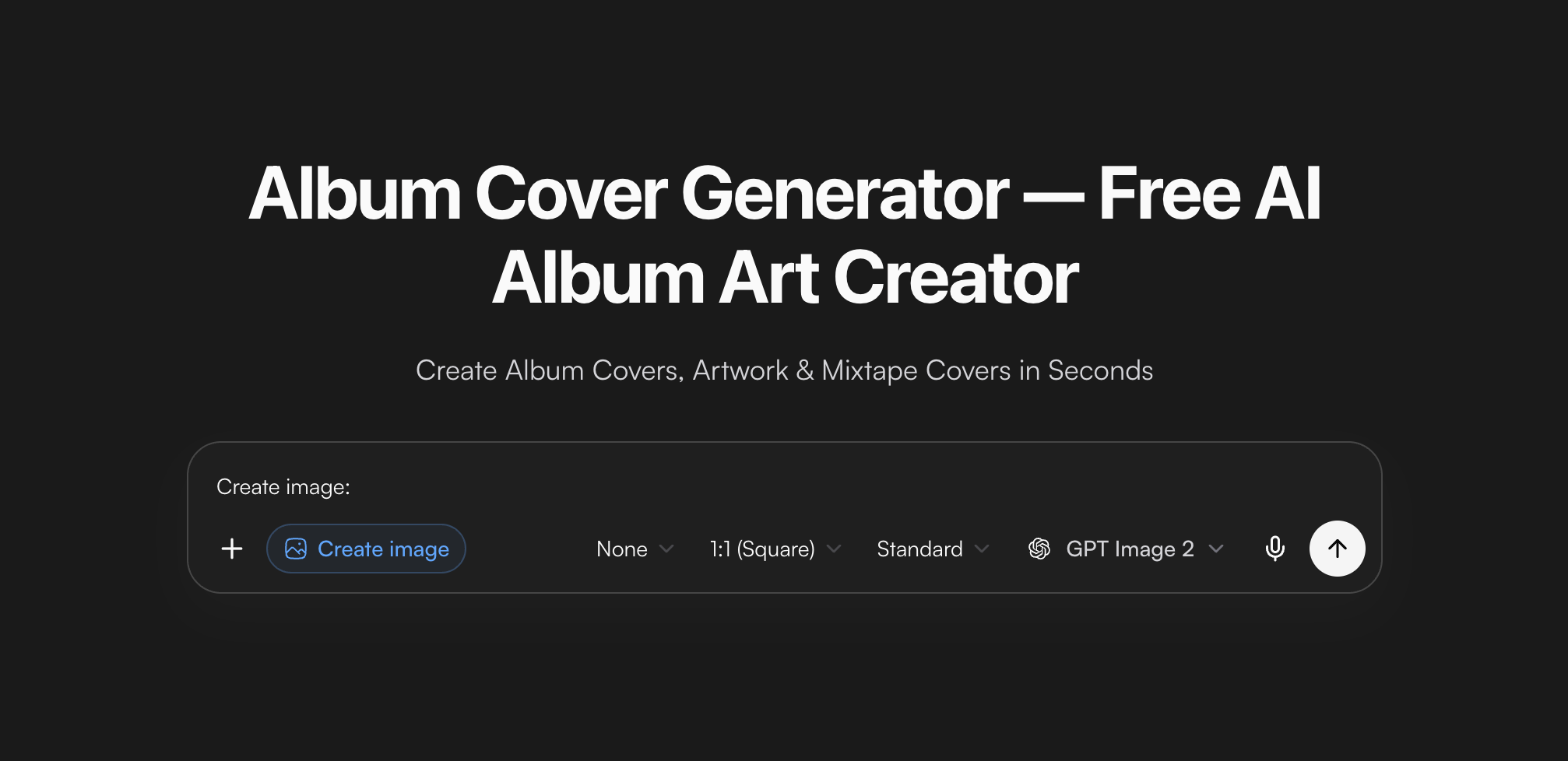
MyClaw’s Album Cover Generator is a straightforward starting point for a square cover built around genre, mood, and a visual idea. Its electronic, indie, and jazz examples suggest compositions with room for typography. Adapt the subject and colors to your track, keeping the layout as a starting point.
The free guest allowance is one AI request shared across text and images, without a credit card. Prepare your brief before using it. The AI Chat plans explain allowances for further attempts.
Adobe Firefly

Adobe Firefly is worth considering when revisions matter as much as the first image. Its album-cover workflow includes aspect-ratio settings, style controls, and reference images. Adobe also describes using Generative Fill and Generative Remove to adjust details or clear a busy area for typography.
You can start with a free Adobe account. For a longer editing session, check which features your account includes and how they consume credits. This matters if your cover needs several rounds of generation and local edits.
Neural Frames

Neural Frames suits a quick experiment without an account. Describe a scene, choose a music style, and generate a square cover. Its page advertises free daily access and PNG downloads, letting you try a visual direction before signing up.
The company says a free account removes the daily limit and lets you save creations. That becomes useful when you want to compare several directions or return to earlier results. Its page also advertises downloads without watermarks; verify the file you intend to use.
RaoMusic

RaoMusic is relevant when you have a finished track but no visual concept. Alongside text prompts, its page describes selecting a song or uploading audio to generate a brief from the music’s mood and genre. It also offers fields for the release title and artist name.
Its current offer includes 30 signup credits, and generation consumes credits. The number of covers depends on the cost of each request. Review that cost at your chosen settings; if you include lettering, proofread it in the generated image.
Write Album Cover Prompts That Match Your Music
Build the prompt around a specific scene. “A cool electronic cover” leaves the composition undecided; a subject, setting, and title area give the generator something concrete to arrange.
Use this structure: release type + genre and mood + focal subject + palette and texture + square layout + title space + exclusions.
Keep those instructions consistent when trying different models. For background on generation and editing capabilities, see the GPT Image 2.5 review.
Add one detail tied to the song: a place in the lyrics, a meaningful object, or the feeling of its opening bars. Genre gives the brief context; personal details give the cover its identity.
The prompts below leave typography for a separate step. Replace each scene with something specific to your music, then use the suggested revision to refine the result.
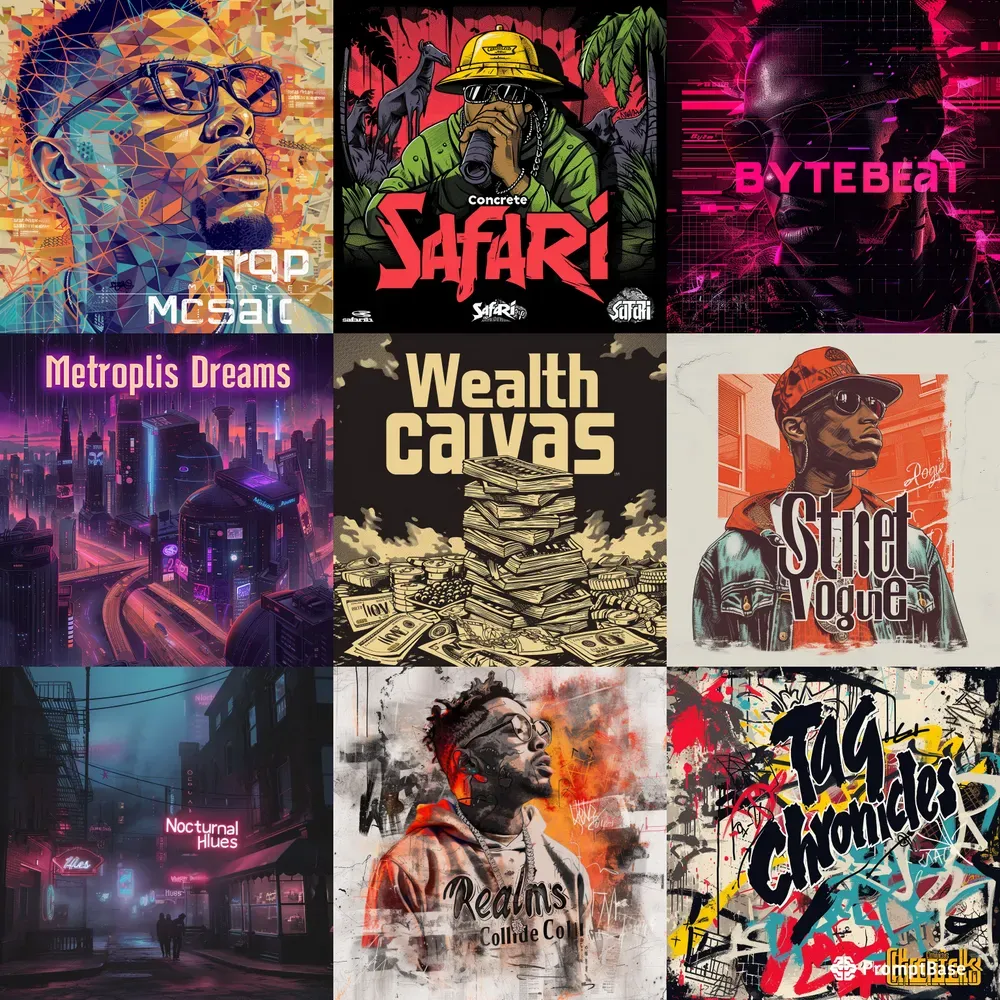
Electronic: One Bold Focal Point
Create a square cover for an atmospheric electronic single. Show a fractured glass prism floating above a still ocean at dusk, with cobalt blue and pale amber light. Use crisp geometry, subtle grain, and one dominant silhouette. Leave the upper quarter uncluttered for a title. No text or logos.
One recognizable shape gives the image a clear identity at thumbnail size. If the result feels crowded, revise with: “Keep the prism and palette; simplify the horizon and remove secondary reflections.”
Indie and Lo-Fi: Build a Specific Scene
Create a square indie EP cover showing an empty laundromat at dawn. Use soft window light, faded mint walls, warm cream highlights, and gentle film texture. Frame one row of machines beside a blank wall reserved for typography. Make the mood quiet and lived-in. No people, text, or logos.
A specific location can suggest a story without explaining it. For a more intimate result, ask: “Keep the setting and colors; move closer to one machine and soften the background detail.”
Jazz and Soul: Use Texture and Negative Space
Create a square contemporary jazz cover from layered paper circles and rhythmic ink strokes. Use warm ivory, deep plum, and muted copper. Keep the paper edges tactile, the arrangement asymmetrical, and the lower-right corner quiet for artist and album names. No text, instruments, or logos.
Limit the materials to keep the design coherent. Try: “Preserve the palette and paper texture; reduce the number of shapes and increase the empty space.”
Pick the Strongest Cover Before Generating More
Compare a small set against the same brief. Open each at full size, then shrink it to roughly 100 pixels wide as a practical thumbnail test. Look for a clear focal point or visual rhythm, a mood that matches the track, and space around any lettering.
Reject unintended distortions, stray letters, and muddy contrast. Abstract artwork can work well: its shapes and color relationships should still feel deliberate when small. Fine detail alone will not carry the cover.
Revise one variable at a time, such as lighting or framing. If a model repeatedly changes details you wanted to preserve, compare another using the same brief. The Sunburst vs. Flare comparison explores that choice; confirm which models your account offers.
Once one version meets the brief, stop changing its visual direction and prepare the final file.
Prepare Your Album Cover for Release
Check Dimensions, Format, and Color
A square image is not automatically a finished delivery file. Spotify and DistroKid publish different requirements and recommendations:
| Platform or distributor | Dimensions | Format and color |
|---|---|---|
| Spotify | Square; 640–10,000 pixels per side | TIFF, PNG, or JPG with lossless encoding; 24-bit sRGB |
| DistroKid | Minimum 1000 × 1000; ideally square at 3000 × 3000 | JPG; RGB color space |
Your distributor’s upload requirements govern the file you submit. Spotify asks for the highest available resolution and says not to upscale images. If a larger file is required, obtain suitable source artwork rather than simply enlarging a small download.
Inspect the downloaded file’s dimensions and format, then view it at full size for compression artifacts, watermarks, and soft edges. Spotify also requires color profiles to be applied directly rather than embedded and does not support orientation metadata.
For vinyl or CDs, obtain the printer’s template. The digital front cover does not include the bleed, spine, or other layout details a physical package may require.
Finish the Title and Review Usage Terms
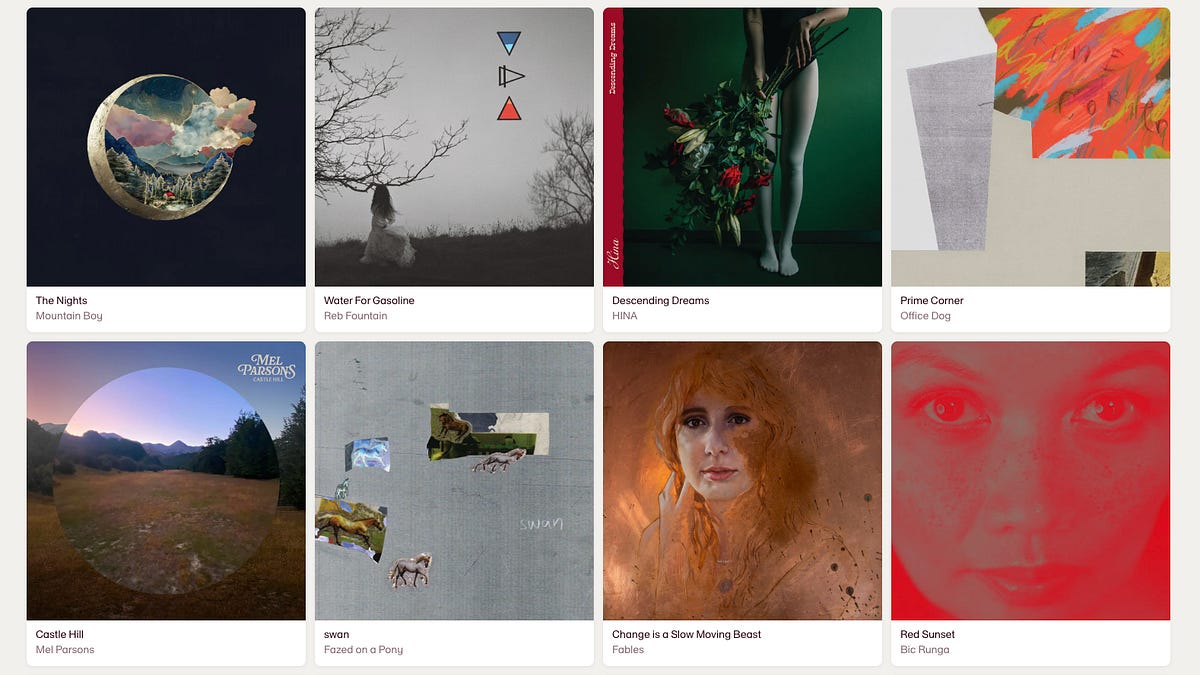
Keep a copy of the artwork without text. Add the artist and release names in an editor when you need exact spelling, alignment, and spacing. Test longer titles at thumbnail size; a simpler typeface or different line breaks may improve readability. Any names shown should match your release metadata.
Review the generator’s usage terms and permissions for uploaded references. Free generation and commercial-use permission are separate questions. DistroKid also lists URLs, QR codes, prices, and streaming-service logos among the elements to leave out of cover art.
Save a separate upload copy after finishing the typography and export settings. Open that exact file before submission to confirm the export looks as intended. Keep the original artwork, editable layout, and prompt together for future promotional crops.
Conclusion
An effective AI album cover generator helps you turn a musical idea into a visual direction you can finish. Start with one clear brief and a small set of variations, then decide what would make a cover worth keeping.
Before committing, show your favorite version to someone without explaining the prompt. Ask what mood or genre they expect and whether anything distracts from the image. Use that feedback for one focused revision. When the cover communicates the right feeling and the file meets your distributor’s requirements, save the finished artwork and move on to the rest of your release.
Generate an Album Cover with MyClaw
Create a custom square album cover, single cover, or mixtape visual. Free to try.
Generate an Album Cover